# ltchiptool
[ltchiptool](https://github.com/libretuya/ltchiptool) is a universal, easy-to-use GUI flashing/dumping tool for BK7231, RTL8710B and RTL8720C. It also contains some CLI utilities for binary firmware manipulation.
[](https://github.com/psf/black)
[](https://pypi.org/project/ltchiptool/)
[](https://github.com/libretuya/ltchiptool/releases/latest)
[:material-download-outline: Download Windows GUI](https://github.com/libretuya/ltchiptool/releases/latest){ .md-button }
### CLI program
Install the package from PyPI, using `pip install ltchiptool`. Run the CLI using `python -m ltchiptool` or just `ltchiptool`.
### GUI application
???+ quote "Windows 7 and newer"
Download the latest release .EXE from the [GitHub Releases page](https://github.com/libretuya/ltchiptool/releases/latest). Open the file, and you're ready to go!
??? quote "Windows (manual installation)"
Install the package from PyPI (**including GUI extras**), using `pip install ltchiptool[gui]`. Note that Python 3.10 or newer is required for the GUI. I recommend Python 3.10 since it has [prebuilt wheels](https://pypi.org/project/wxPython/4.2.0/#files) of wxPython, which doesn't require C++ build dependencies.
??? quote "Linux (Ubuntu)"
Install the package from PyPI, using `pip install ltchiptool`. Python 3.10 or newer is required.
Make sure you have wxPython installed. Install it from PyPI (if you have the necessary build dependencies), or refer to the [wxPython Downloads](https://wxpython.org/pages/downloads/index.html) page to install prebuilt wheels (recommended).
Next, open a terminal and run `ltchiptool gui` (or `python -m ltchiptool gui`).
??? quote "MacOS (untested)"
Install the package from PyPI, using `pip install ltchiptool`. Python 3.10 or newer is required.
Install wxPython from PyPI as well. Version 4.2.0 (latest at the time of writing) has some wheels for MacOS, so that should work.
## GUI Usage
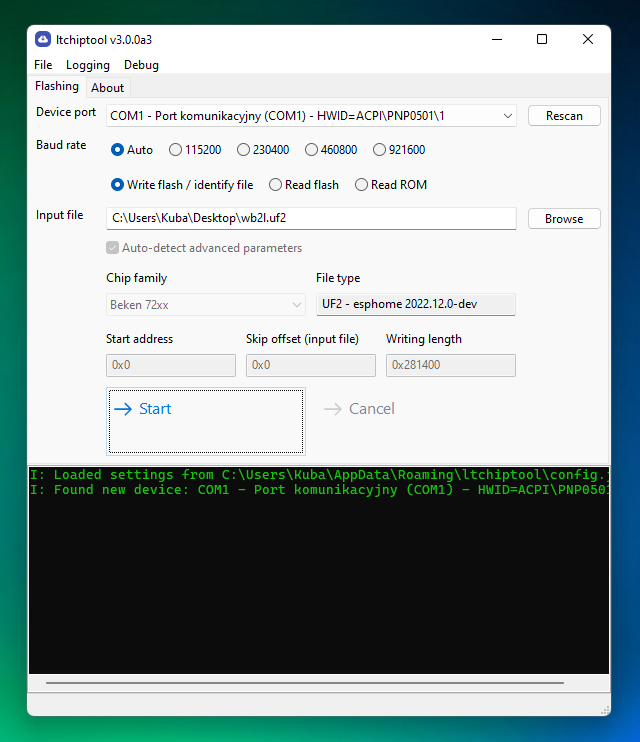
The main window is somewhat similar to [NodeMCU PyFlasher](https://github.com/marcelstoer/nodemcu-pyflasher).
- For dumping, choose `Read flash`. If you've previously chosen an input or output file, it will generate a dump filename with the current timestamp and chip type. Otherwise, click `Browse` and choose the output file. By default, the tool will attempt to read the entire flash chip (usually 2 MiB).
- For flashing, choose `Write flash`. Click `Browse` and select *any* valid firmware file. The file type and chip type will be auto-detected, along with correct flash offset and length. No need to worry about overwriting the bootloader anymore!
- If the file you're selecting is `Unrecognized` or `Not flashable`, it's most likely not a valid firmware file. Refer to usage guides of the custom firmware project of choice, to find which file is meant for flashing.
- **It's best to leave `Auto-detect advanced parameters` checked**. If you're an experienced user and want to flash custom areas of the flash, uncheck the box and specify the parameters manually.
- When you're ready, hit `Start`. The tool will try to connect to the chip on the selected UART port. The black log window will print any warnings/errors, as well as **a short guide on how to put the chip in download mode**.
!!! info
LibreTuya generates multiple firmware files in the build directory. **You usually want to flash the `.uf2` file**, but since ltchiptool can detect file types, you can choose a different firmware file and it'll tell you if that works.
## CLI Usage
!!! note
If you're here to learn how to flash or dump firmware files, use the instructions above.
The content below serves as a short documentation page for [`ltchiptool`](https://github.com/libretuya/ltchiptool) and is mostly meant for advanced users.
```console
$ ltchiptool --help
Usage: ltchiptool [OPTIONS] COMMAND [ARGS]...
Tools for working with LT-supported IoT chips
Options:
-v, --verbose Output debugging messages (repeat to output more)
-T, --traceback Print complete exception traceback
-t, --timed Prepend log lines with timing info
-r, --raw-log Output logging messages with no additional styling
-i, --indent INTEGER Indent log messages using graph lines
-V, --version Show the version and exit.
-h, --help Show this message and exit.
Commands:
dump Capture or process device dumps
elf2bin Generate firmware binaries from ELF file
flash Flashing tool - reading/writing
link2bin Link code to binary format
list List boards, families, etc.
soc Run SoC-specific tools
uf2 Work with UF2 files
```
### Flashing/dumping
There are three main commands used for flashing:
- `ltchiptool flash file ` - detect file type based on its contents (i.e. chip from which a dump was acquired), similar to Linux `file` command
- `ltchiptool flash read ` - make a full flash dump of the connected device; specifying the family is required
- `ltchiptool flash write ` - upload a file to the device; detects file type automatically (just like the `file` command above)
Supported device families can be checked using `ltchiptool list families` command. In the commands above, you can use any of the family names (name/code/short name/etc).
The upload UART port and baud rate is detected automatically. To override it, use `-d COMx` or `-d /dev/ttyUSBx`. To change the target baud rate, use `-b 460800`.
Note that the baud rate is changed after linking. Linking is performed using chip-default baud rate.
It's not required to specify chip family for writing files - `ltchiptool` tries to recognize contents of the file, and chooses the best settings automatically.
If you want to flash unrecognized/raw binaries (or fine-tune the flashing parameters), specify `-f ` and `-s `.
### UF2 Example
```console
$ ltchiptool uf2 info ./arduinotest_22.08.01_wb2l_BK7231T_lt0.8.0.uf2
Family: BK7231T / Beken 7231T
Tags:
- BOARD: wb2l
- DEVICE_ID: d80e20c2
- LT_VERSION: 0.8.0
- FIRMWARE: arduinotest
- VERSION: 22.08.01
- OTA_VERSION: 01
- DEVICE: LibreTuya
- BUILD_DATE: 6d08e862
- LT_HAS_OTA1: 01
- LT_HAS_OTA2: 00
- LT_PART_1: app
- LT_PART_2:
Data chunks: 1871
Total binary size: 478788
```