
6.6 KiB
ltchiptool
ltchiptool is a universal, easy-to-use GUI flashing/dumping tool for BK7231, RTL8710B and RTL8720C. It also contains some CLI utilities for binary firmware manipulation.



Installation
:material-download-outline: Download Windows GUI{ .md-button }
CLI program
Install the package from PyPI, using pip install ltchiptool. Run the CLI using python -m ltchiptool or just ltchiptool.
GUI application
???+ quote "Windows 7 and newer" Download the latest release .EXE from the GitHub Releases page. Open the file, and you're ready to go!
??? quote "Windows (manual installation)"
Install the package from PyPI (including GUI extras), using pip install ltchiptool[gui]. Note that Python 3.10 or newer is required for the GUI. I recommend Python 3.10 since it has prebuilt wheels of wxPython, which doesn't require C++ build dependencies.
??? quote "Linux (Ubuntu)"
Install the package from PyPI, using pip install ltchiptool. Python 3.10 or newer is required.
Make sure you have wxPython installed. Install it from PyPI (if you have the necessary build dependencies), or refer to the [wxPython Downloads](https://wxpython.org/pages/downloads/index.html) page to install prebuilt wheels (recommended).

Next, open a terminal and run `ltchiptool gui` (or `python -m ltchiptool gui`).
??? quote "MacOS (untested)"
Install the package from PyPI, using pip install ltchiptool. Python 3.10 or newer is required.
Install wxPython from PyPI as well. Version 4.2.0 (latest at the time of writing) has some wheels for MacOS, so that should work.
GUI Usage
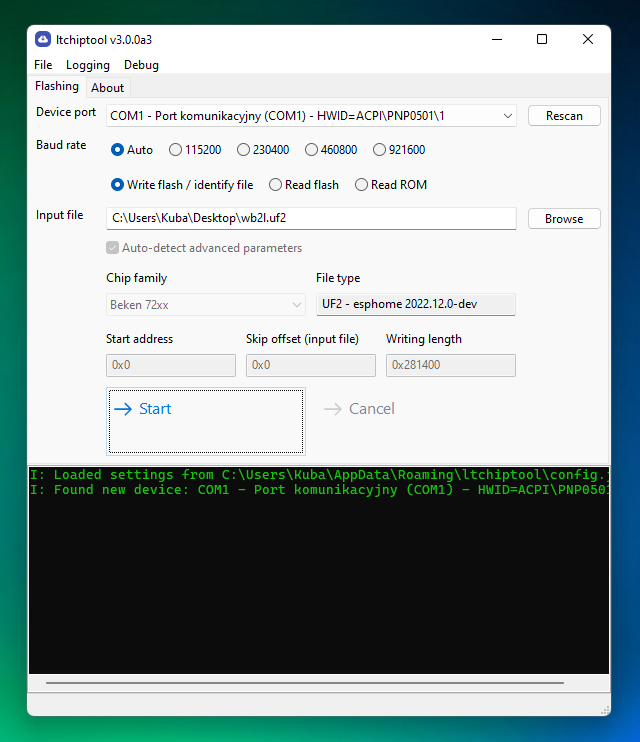
The main window is somewhat similar to NodeMCU PyFlasher.
- For dumping, choose
Read flash. If you've previously chosen an input or output file, it will generate a dump filename with the current timestamp and chip type. Otherwise, clickBrowseand choose the output file. By default, the tool will attempt to read the entire flash chip (usually 2 MiB). - For flashing, choose
Write flash. ClickBrowseand select any valid firmware file. The file type and chip type will be auto-detected, along with correct flash offset and length. No need to worry about overwriting the bootloader anymore!- If the file you're selecting is
UnrecognizedorNot flashable, it's most likely not a valid firmware file. Refer to usage guides of the custom firmware project of choice, to find which file is meant for flashing.
- If the file you're selecting is
- It's best to leave
Auto-detect advanced parameterschecked. If you're an experienced user and want to flash custom areas of the flash, uncheck the box and specify the parameters manually. - When you're ready, hit
Start. The tool will try to connect to the chip on the selected UART port. The black log window will print any warnings/errors, as well as a short guide on how to put the chip in download mode.
!!! info
LibreTuya generates multiple firmware files in the build directory. You usually want to flash the .uf2 file, but since ltchiptool can detect file types, you can choose a different firmware file and it'll tell you if that works.
CLI Usage
!!! note If you're here to learn how to flash or dump firmware files, use the instructions above.
The content below serves as a short documentation page for [`ltchiptool`](https://github.com/libretuya/ltchiptool) and is mostly meant for advanced users.
$ ltchiptool --help
Usage: ltchiptool [OPTIONS] COMMAND [ARGS]...

  Tools for working with LT-supported IoT chips

Options:
  -v, --verbose         Output debugging messages (repeat to output more)
  -T, --traceback       Print complete exception traceback
  -t, --timed           Prepend log lines with timing info
  -r, --raw-log         Output logging messages with no additional styling
  -i, --indent INTEGER  Indent log messages using graph lines
  -V, --version         Show the version and exit.
  -h, --help            Show this message and exit.

Commands:
  dump      Capture or process device dumps
  elf2bin   Generate firmware binaries from ELF file
  flash     Flashing tool - reading/writing
  link2bin  Link code to binary format
  list      List boards, families, etc.
  soc       Run SoC-specific tools
  uf2       Work with UF2 files
Flashing/dumping
There are three main commands used for flashing:
ltchiptool flash file <FILE>- detect file type based on its contents (i.e. chip from which a dump was acquired), similar to Linuxfilecommandltchiptool flash read <FAMILY> <FILE>- make a full flash dump of the connected device; specifying the family is requiredltchiptool flash write <FILE>- upload a file to the device; detects file type automatically (just like thefilecommand above)
Supported device families can be checked using ltchiptool list families command. In the commands above, you can use any of the family names (name/code/short name/etc).
The upload UART port and baud rate is detected automatically. To override it, use -d COMx or -d /dev/ttyUSBx. To change the target baud rate, use -b 460800.
Note that the baud rate is changed after linking. Linking is performed using chip-default baud rate.
It's not required to specify chip family for writing files - ltchiptool tries to recognize contents of the file, and chooses the best settings automatically.
If you want to flash unrecognized/raw binaries (or fine-tune the flashing parameters), specify -f <FAMILY> and -s <START OFFSET>.
UF2 Example
$ ltchiptool uf2 info ./arduinotest_22.08.01_wb2l_BK7231T_lt0.8.0.uf2
Family: BK7231T / Beken 7231T
Tags:
 - BOARD: wb2l
 - DEVICE_ID: d80e20c2
 - LT_VERSION: 0.8.0
 - FIRMWARE: arduinotest
 - VERSION: 22.08.01
 - OTA_VERSION: 01
 - DEVICE: LibreTuya
 - BUILD_DATE: 6d08e862
 - LT_HAS_OTA1: 01
 - LT_HAS_OTA2: 00
 - LT_PART_1: app
 - LT_PART_2:
Data chunks: 1871
Total binary size: 478788